Choosing the right Power Supply in 2026 means looking beyond the wattage printed on its box. A high number cannot guarantee stable power, quiet operation, or efficient performance. Small label. Big consequences. The right unit must match your components, workload, case, and plans for upgrades.
Efficiency matters beyond the electricity bill. Lawrence Berkeley National Laboratory’s 2024 United States Data Center Energy Usage Report estimated that U.S. data centers used about 176 terawatt-hours in 2023, roughly 4.4% of national electricity consumption. The report projects demand could reach 325–580 terawatt-hours by 2028. Those figures describe data centers, not home PCs, so they do not tell you which unit to buy. They do show why power conversion deserves attention. Certification labels can help, but performance at your actual load matters more than a badge alone.
Power-electronics expert Dr. Alex Lidow, founder and CEO of Efficient Power Conversion, has focused much of his work on improving power-conversion efficiency. A practical paraphrase of that engineering principle is: judge efficiency where the system actually operates. Treat that as guidance, not a verbatim quotation or a complete buying rule. In this guide, we’ll compare wattage, connector support, efficiency, protections, acoustics, and independent testing. We’ll also flag a common uncertainty: manufacturers’ specifications do not always make real-world comparisons easy. A little skepticism helps. The goal is a Power Supply that delivers clean, dependable power without paying for capacity your system will never use.
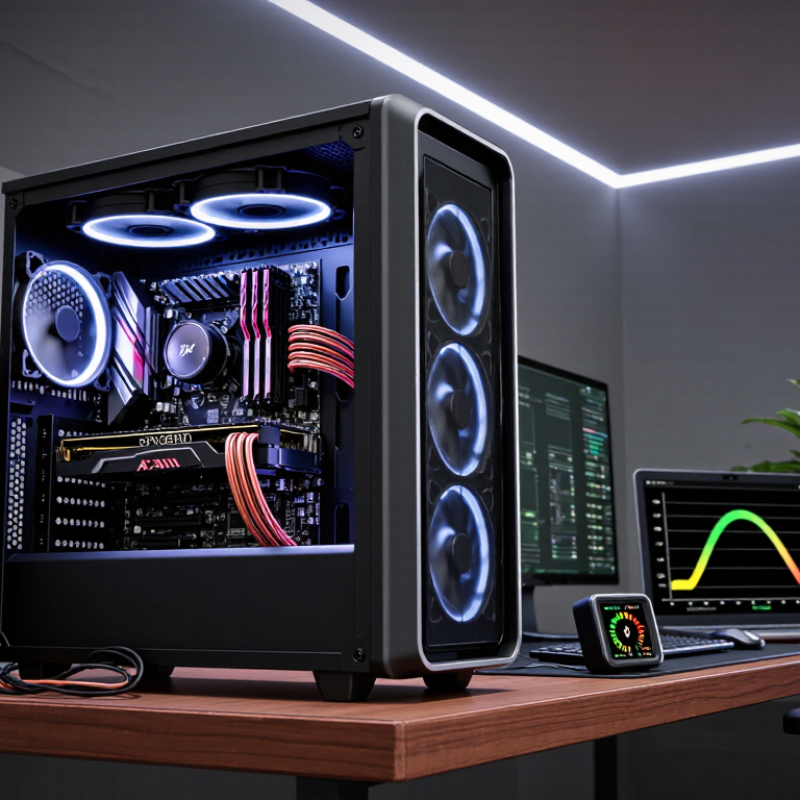
Identify Your System’s Power Requirements
Identify your system’s power requirements before choosing a power supply. Check the processor and graphics card specifications, then add power for the motherboard, memory, storage drives, cooling fans, and connected devices. A system with a powerful graphics card may draw much more during brief workload spikes than during ordinary browsing. Don’t size the supply from idle readings. Those can be misleading. Leave roughly 20–30% capacity above your estimated peak draw when practical, and verify the recommendation for your specific components. The margin is useful, but it is not a substitute for checking compatibility.
Tips: Write down each component’s stated power needs and use a reputable calculator as a second check. Count every drive and fan; small loads add up. Check that the supply has the right connectors for your graphics card and motherboard. Wattage alone does not tell you whether a unit can deliver power through the connectors your build needs.
Think about how you actually use the computer. Long gaming sessions, rendering, or future upgrades may call for more headroom than a basic office setup. I’ve seen estimates miss a simple detail: a later-added drive or several extra fans. It is easy to overlook. Recheck the list before buying, especially if component specifications differ by model. If your estimate feels uncertain, pause and verify the figures rather than guessing upward without reason.
How to Choose the Right Power Supply in 2026? - Identify Your System’s Power Requirements
| System Type | Typical Configuration | Estimated Heavy-Load DC Power | Suggested PSU Capacity | Selection Notes |
|---|---|---|---|---|
| Office or home PC | Integrated graphics, mainstream desktop CPU, one or two storage drives | 80–180 W | 300–450 W | A quality unit with the motherboard and CPU power connectors your system requires is usually sufficient. |
| Entry-level gaming PC | 6-core CPU, lower- to mid-range graphics card, several drives and fans | 250–400 W | 550–650 W | Check the graphics card’s published power guidance and required PCIe power connectors. |
| Mainstream gaming PC | 6- to 8-core CPU, mid-range graphics card, multiple drives or cooling fans | 350–550 W | 650–750 W | Allow extra capacity for brief GPU power spikes and future component upgrades. |
| High-performance gaming PC | 8- to 16-core CPU, high-power graphics card, several drives and liquid or air cooling | 600–850 W | 850–1,200 W | For a modern high-power graphics card, verify connector compatibility; an ATX 3.1 PSU with a native 12V-2x6 cable may be appropriate. |
| Creator or workstation PC | High-core-count CPU, one or more compute-capable graphics cards, multiple drives | 500–1,000+ W | 750–1,500+ W | Add the CPU and GPU power figures, then account for the motherboard, drives, cooling, and simultaneous workloads. |
How to use these estimates: Values are approximate system DC loads under demanding workloads, not fixed requirements. Check the exact CPU and graphics card specifications, include all installed components, and follow the graphics card maker’s PSU recommendations. Choose a reliable PSU with the correct connectors and adequate capacity; an efficiency rating describes conversion efficiency, not overall build quality.
FAQS
Add the processor, graphics card, motherboard, memory, drives, fans, and connected devices. Small loads add up. Use peak figures, not idle readings.
Brief workload spikes can exceed ordinary use. A 20–30% margin may help, but check component guidance. It is not a guarantee.
A 320-watt graphics card, 140-watt processor, and 80 watts for other parts total about 540 watts. With 25% headroom, consider roughly 700–750 watts.
No. The rating describes its available capacity, not constant use. A computer draws different amounts while browsing, gaming, or rendering.
It describes energy conversion under specified test conditions. Actual efficiency varies with load. Compare test data, protections, and warranty terms too.
Fixed cables stay attached; modular cables can be removed. Fewer loose cables may help keep airflow paths clear in a compact case.
Confirm connector types and power-supply dimensions match your components and case. Wattage alone is not enough.
They provide a useful second check, but their assumptions may miss workload spikes or later upgrades. I once forgot an extra drive.
Conclusion
Choosing the right Power Supply in 2026 starts with understanding your system’s needs. Add up the power requirements of key components, then select a suitable wattage with enough headroom for brief spikes, future upgrades, and stable operation. Avoid choosing solely by the highest wattage number; a well-matched unit is a better fit for your system.
Next, consider efficiency, cooling style, and physical compatibility. Check that the form factor fits your case and that the cables and connectors support every component. Before buying, review the unit’s safety protections, reliability information, and warranty terms. Comparing these factors helps you choose a Power Supply that delivers dependable power while fitting your setup and plans.